Process drone imagery on your workstation, automate files arriving in a local archive, or test a cloud storage-event pipeline locally. Local and cloud automations use the same StorageEventTask interface, so a watched folder can stand in for a cloud bucket during development.
Register a directory, start the CLI watcher, and run tasks when matching files arrive. You can process the imagery where it already lives, without uploading it to a cloud bucket first.
This example starts a job for each of three JPGs copied into a watched folder. A local runner then creates a thumbnail and writes a JSON report with image dimensions.
Three JPGs arrive in a watched local folder. The recording shows thumbnail generation, JSON reports, and matching events in the Console.
The images and outputs stay on your workstation. The watcher and runner need a connection to Tilebox, which hosts the events, jobs, and logs.
The example reads through self.trigger.storage, which handles local files, S3, Google Cloud Storage, and Azure Blob Storage. Inside the task, the read stays the same:
key = self.trigger.location# Local or cloud: the same client.storage = self.trigger.storagedata = storage.read(key)make_thumbnail( data, key, self.output_dir)
For a cloud run, connect the bucket and give the runner access. Storage notifications replace the local watcher, and the workflow code can stay the same across environments.
We’ve added native Windows support in Tilebox CLI 0.11.0. You can develop and test Python workflows on your Windows machine, then build and publish releases for your processing infrastructure.
Your coding agent can use the CLI and Tilebox skills in that same environment to edit workflow code, run test jobs, and inspect results.
WSL remains fully supported. If that’s where you work, follow the Linux installation instructions inside your WSL terminal.
To install the CLI and agent skills directly on Windows, run this in PowerShell:
irm https://install.tilebox.com/wizard.ps1 | iex
The setup uses uv to manage Python workflow environments and Node.js and npm to install Tilebox agent skills.
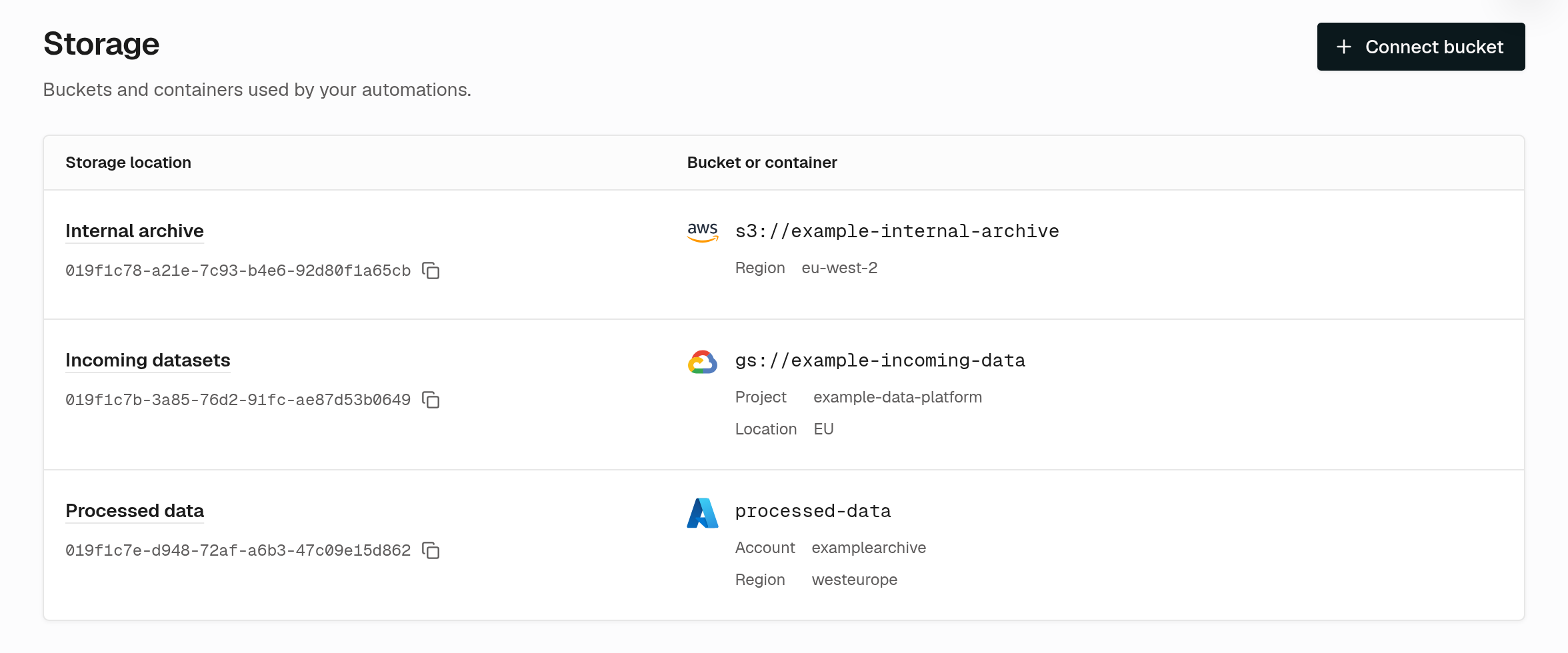
We’ve added a Storage page to the Console for connecting Amazon S3, Google Cloud Storage, and Azure Blob Storage to workflow automations. You can register a bucket or container, set up a notification subscription, and see incoming events alongside the jobs they trigger.
Cloud storage connections in the Console.
Use storage events to start a processing pipeline when raw satellite data (Level 0) arrives, when a commercial provider delivers imagery you’ve purchased or tasked, or when customers upload files to your platform.
Once storage notifications and an automation are configured, incoming files submit jobs for your runners to execute. With that setup, you can iterate on your geospatial processing code, even locally, without touching infrastructure code. For example, you can submit storage-event tasks manually for an existing file and execute them with a local runner. The storage-event task guide shows how to test these tasks during development.
The catalog demo uses one ingestion task for both a 5,000-product backfill and new arrivals from a storage automation.
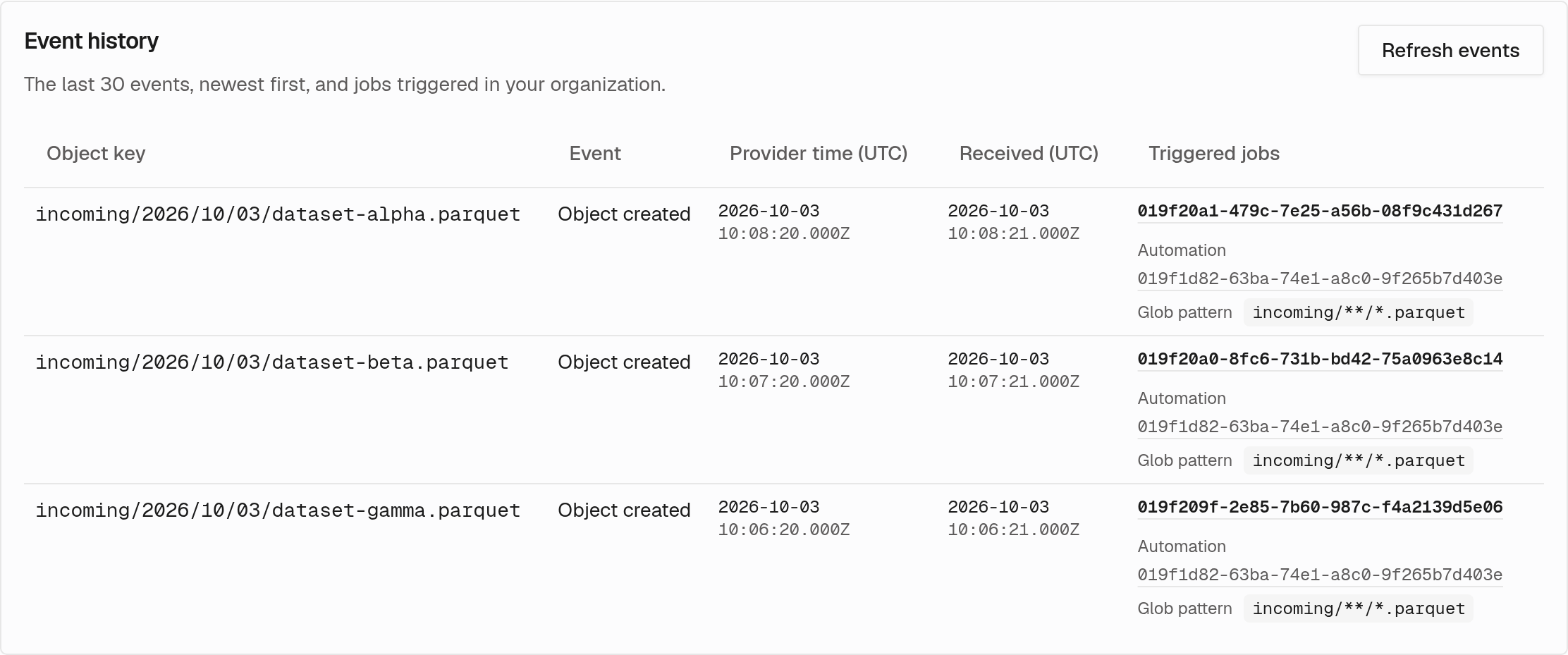
Event history shows which object arrived and links to the resulting jobs, so you can follow the upload through to execution.
Storage event history with links to triggered jobs.
We’ve rebuilt tilebox.com. We want our website to evolve with the product, and we can now make changes much faster.
We focused on clarity, speed, and accessibility. You should be able to find the information you need to decide whether Tilebox fits your work. We also updated the quickstart in the console to help you get a first result sooner.
Laura used it to make a satellite timelapse of her hometown, Valencia. The video below shows the result, followed by the tasks and logs behind it. You can try the quickstart and open the Python code in the console to see how it works.
A satellite timelapse of Valencia, followed by the task timeline and logs in the console.
I hope you enjoy exploring the site. If you can’t find an answer, or something doesn’t work, tell us on Discord. That will help us decide what to improve next.
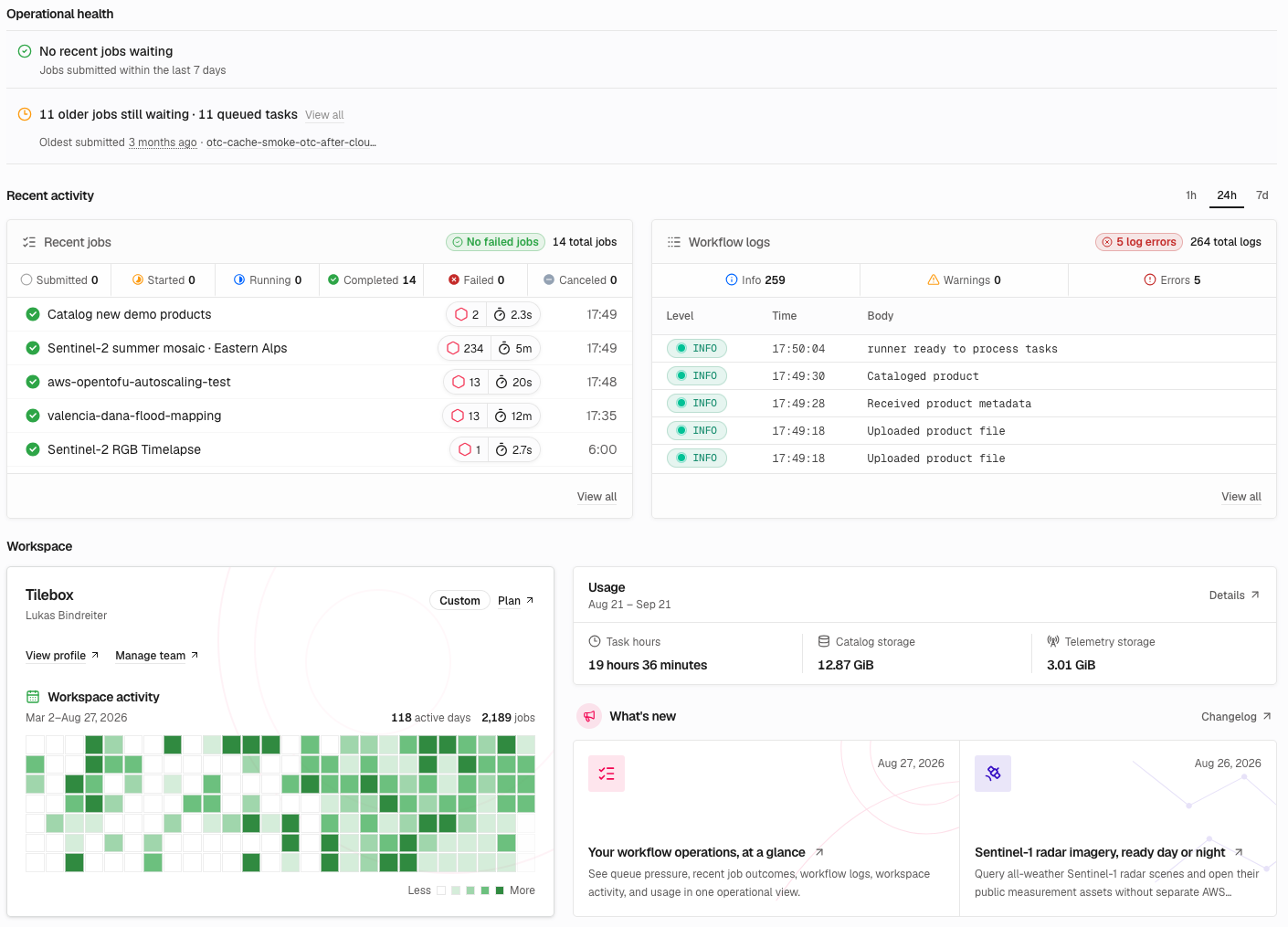
The new Tilebox Console Dashboard puts workflow health front and center. See queue pressure, recent job outcomes, workflow logs, workspace activity, and usage in one operational view, then drill directly into the jobs and logs that need attention.
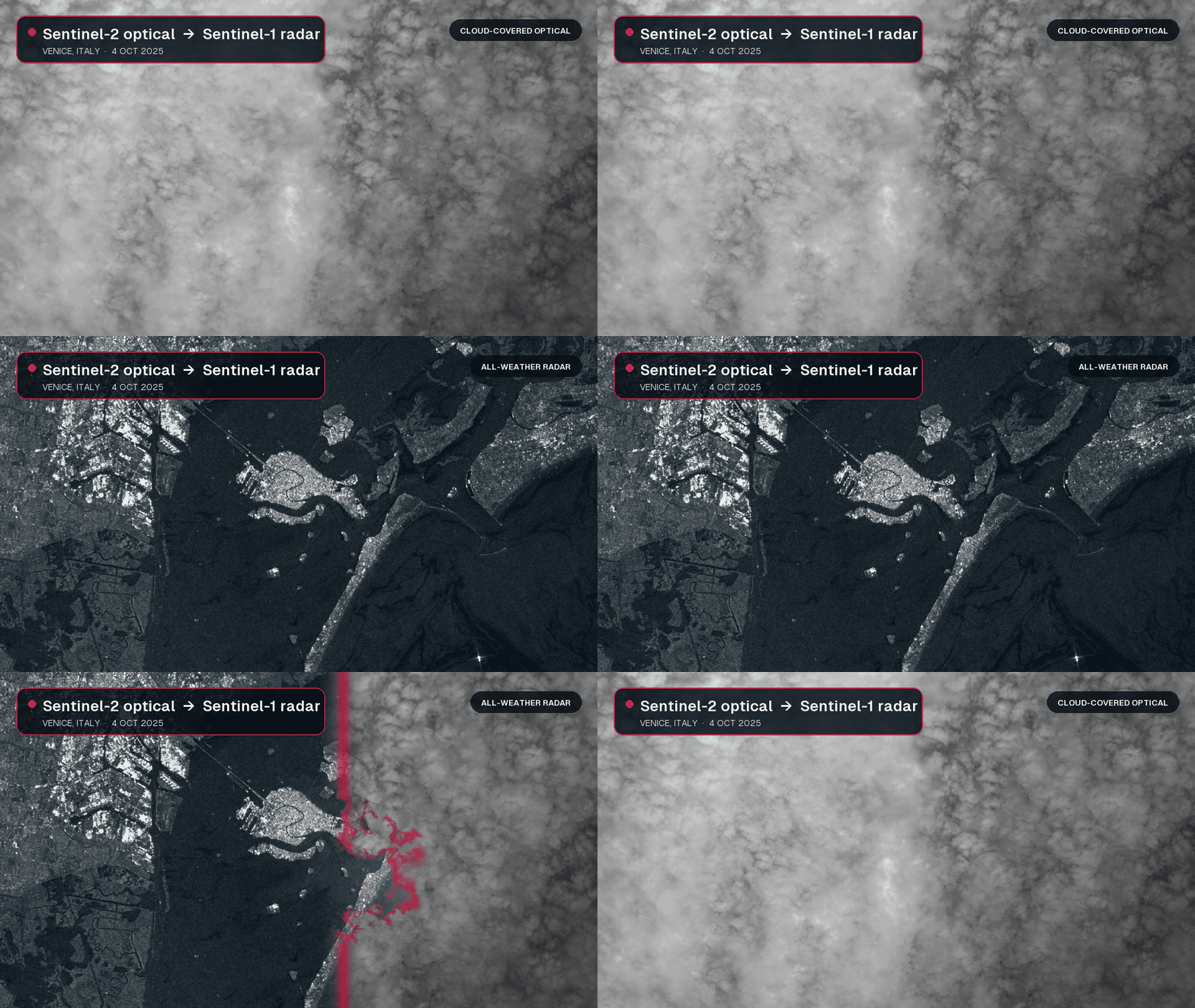
The new open_data.aws_earth.sentinel1 dataset provides credentials-free access to global Sentinel-1 Level-1 Ground Range Detected (GRD) scenes and their public AWS assets. Unlike optical sensors, Sentinel-1 uses synthetic aperture radar (SAR) to observe the surface through clouds and without sunlight, so you can keep analyzing conditions when optical imagery is unavailable.
Query scenes by time, location, or satellite platform, then open the available polarization measurements as Cloud Optimized GeoTIFFs (COGs). Each datapoint also includes acquisition and orbit details, SAR metadata, a preview image, and the product, calibration, noise, and SAFE manifest files needed for further processing.
These consistent, all-weather observations are well suited to flood and disaster mapping, sea-ice and maritime monitoring, forest disturbance detection, and tracking changes in crops, soil moisture, and infrastructure. You can move from a spatial query to a focused pixel read in one workflow, without configuring separate AWS credentials or downloading a complete scene first.

The redesigned job details page makes it easier to understand what a workflow is doing, where it spends time, and why it failed. Job progress, execution statistics, tasks, traces, and logs now form one connected view, so you can move from the state of the whole job to the work of an individual task without losing context.
Tasks appear in their workflow hierarchy instead of a flat list. Expand the branches you care about, follow state and timing through nested work, and navigate large jobs without loading the entire task graph at once.
Select any task to see its input, timing, retries, compute location, execution trace, and logs together. A failed or slow task is no longer an isolated telemetry record: you can see where it sits in the workflow, inspect what it received, and trace exactly what happened during its execution.


The new open_data.aws_earth.sentinel2 dataset provides credentials-free access to Sentinel-2 metadata and Cloud Optimized GeoTIFFs (COGs). You can start working with satellite imagery using only your Tilebox API key—no external data provider account, separate credentials, or storage configuration required.
Query Level-2A scenes by time, location, cloud cover, or satellite platform, then resolve a result directly into Tilebox assets. From the same datapoint, you can inspect the available spectral bands, download a complete image, or open a COG remotely and read only the pixels covering your area of interest.
This makes it practical to move from catalog search to image processing in one workflow: find a low-cloud scene, select a band, crop it to a geographic region, and pass the resulting data into your analysis without first downloading an entire scene.
Custom dataset schemas can now mark selected fields as queryable. Tilebox evaluates these field expressions on the
server together with temporal, spatial, and collection filters, so clients only receive matching datapoints.
Filters support comparisons, boolean logic, and null checks.
Queryable fields support strings, booleans, signed and unsigned integers, and floating-point values. Dataset authors
select queryable fields before ingesting datapoints.
Dataset datapoints can now describe file assets and their storage locations. The Python SDK resolves that metadata into asset collections, and the asynchronous storage client can stream, download, or open those assets across supported storage providers.
The GeoTIFF integration also supports remote COG access and window reads, so you can fetch only the pixels needed for an area of interest.
Provider-specific storage clients are now deprecated. Migration guidance for existing integrations will follow.
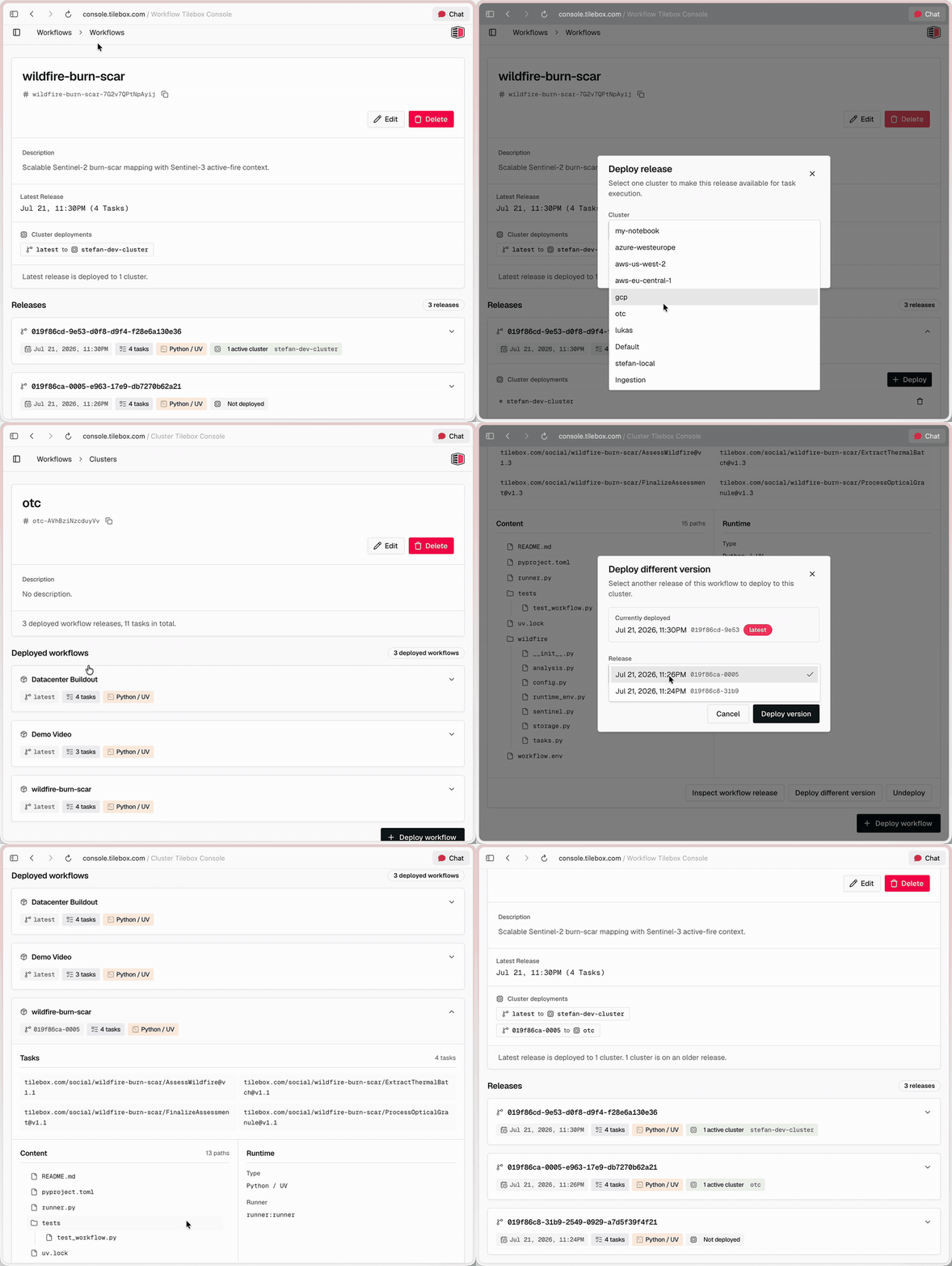
Tilebox now exposes more workflow operations across the Console, SDKs, CLI, MCP server, and runner deployments. You can manage workflow releases and clusters from the Console, filter jobs by compute location, schedule automations in local time, and start release runners from an official Tilebox container image.
What changed
Workflow management in the Console. Create and edit workflows, inspect release history, tasks, runtime configuration, and artifacts, and deploy or undeploy releases across clusters. You can also delete workflows or unpublish individual releases without deleting existing jobs.
Redesigned cluster pages. The Console now provides a clearer cluster overview and dedicated detail pages for deployed workflow releases and tasks. From a cluster page, you can edit the cluster, deploy another workflow or release version, or undeploy a release. Protected default clusters are clearly marked.
Job filtering by cluster. Filter jobs by one or more cluster slugs in the Console, Python and Go SDKs, and CLI. This makes it easier to inspect work assigned to specific development, production, or specialized compute infrastructure.
Expanded MCP coverage. AI agents using the Tilebox MCP server can manage clusters, workflows, existing releases, and jobs; inspect logs and spans; view automations; and query decoded dataset datapoints, including spatial queries. MCP can deploy published releases; building and uploading new workflow code requires the CLI.
Timezone-aware Cron schedules. Cron automations now accept standard five-field expressions with lists, ranges, steps, named weekdays, and named months. Prefix a schedule with CRON_TZ=<timezone> to use an IANA timezone, or use helpers such as @hourly, @daily, @weekly, @monthly, and @yearly. Schedules without a timezone continue to use UTC.
Official runner image. The release-runner image is available at ghcr.io/tilebox/runner. It includes the Tilebox CLI, uv, Python 3.12 through 3.14, Git, Git LFS, and common geospatial build dependencies. The image runs tilebox runner start by default and can be configured for a cluster through environment variables.
For example, this schedule runs at 09:00 on weekdays in Vienna and follows daylight saving time automatically:
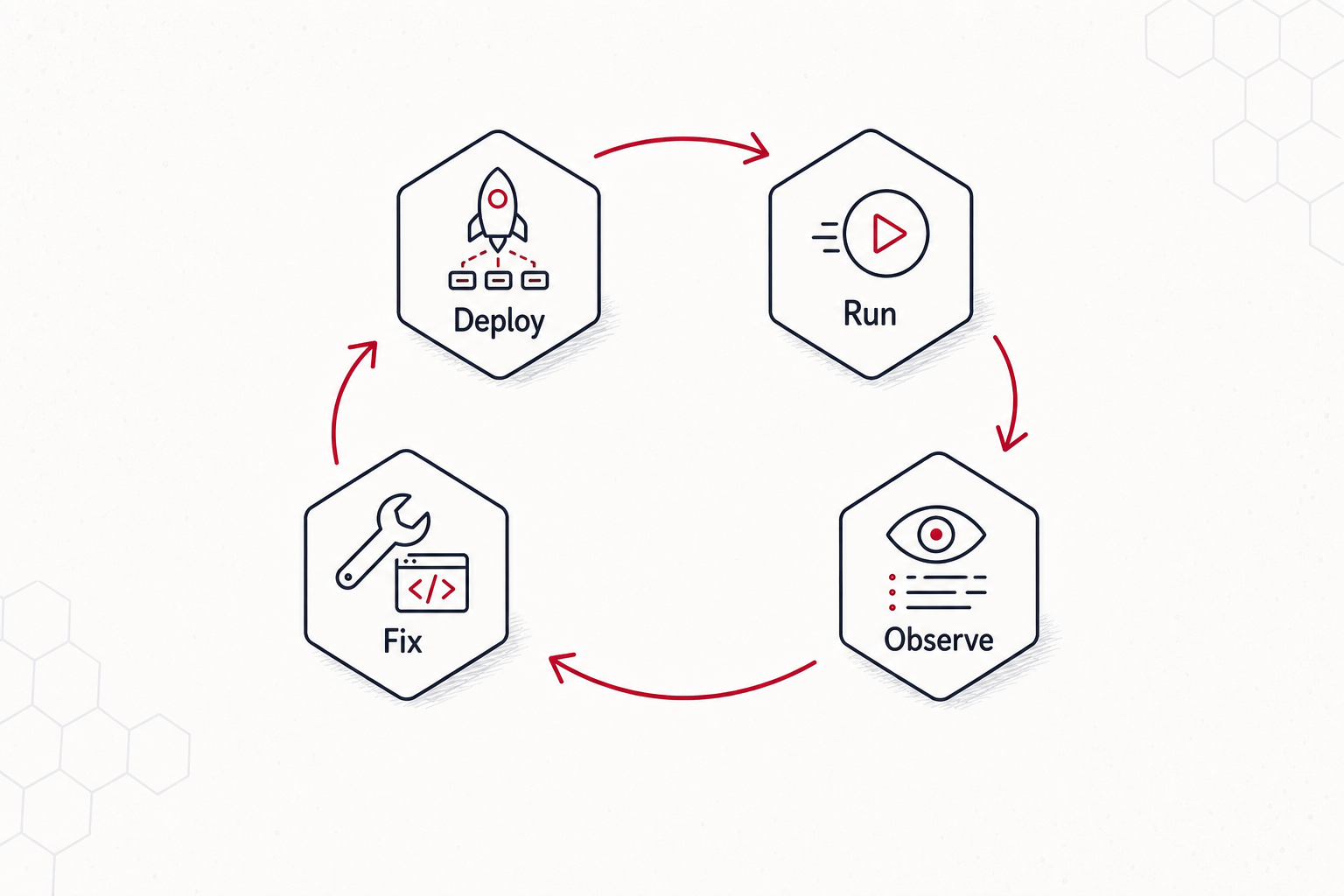
Tilebox Workflows now supports workflow release publishing and cluster deployments. This adds a new release-based execution path to the workflow orchestrator: package a Python workflow project, publish an immutable release, deploy it to a cluster, run it on release runners, and inspect the resulting job logs and execution traces.
The release path is designed for closed-loop workflow iteration by developers and agents. An agent can edit workflow code, publish a release, deploy it to a development cluster, submit a test job, inspect the failed task logs or spans, apply a fix, and retry or submit the next job without leaving the same command-line workflow.
Release runners. Release runners run in an environment you control, watch a cluster, load the deployed releases for that cluster, and execute compatible tasks without rebuilding the runner process for every workflow code change.
Workflow release publishing. A workflow is now a long-lived object with a stable slug, and each release captures a concrete version of the workflow project, runtime entrypoint, selected files, and discovered task identifiers.
Project-local workflow configuration.tilebox.workflow.toml binds a repository directory to a workflow slug, build inputs, runtime entrypoint, and optional deployment targets, so commands can use the local project as context.
Cluster deployments. Publishing and deploying are separate steps. A release can be deployed to one or more clusters, and different clusters can run different releases of the same workflow.
Command Line Interface (CLI) tools were built for humans, but today’s coding agents need definitive structure and rules. We’ve designed our CLI for both.
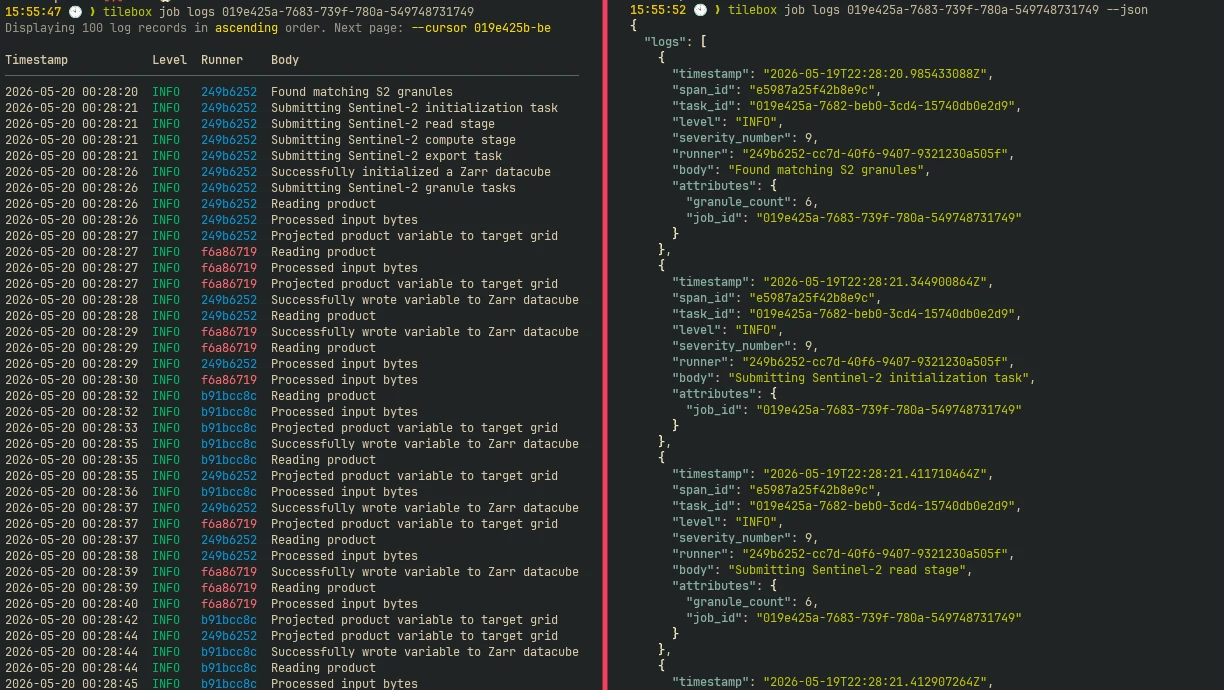
Humans get a clean, readable terminal experience with familiar commands
AI agents get structured, predictable output they can reliably parse and act on
Tilebox CLI
With this release, developers, operators, and coding agents gain a direct access point to Tilebox from the terminal: inspect datasets, query datapoints, submit workflow jobs, read logs, search docs, and discover the whole command surface without leaving the shell.
The release is built around a simple idea: a CLI should be readable for humans and precise enough for agents. Humans need concise commands, useful terminal output, and familiar verbs. Agents need structured output, bounded results, clear validation, and machine-readable descriptions of what each command accepts and returns. Tilebox CLI supports both use-cases right from the very first release.
Tilebox CLI for Humans (left) and Agents (right)
Agent-native CLI design principles
Agent support isn’t one feature. It is a set of design choices that reduce ambiguity every time a command runs.
Consistent vocabulary: Commands are grouped into clear families such as dataset , job , and cluster , and use consistent verbs such as list , get , create , update , delete , and submit .
Structured output: Every commands accepts a --json flag, which gives agents parseable results without changing the command a human would use.
Structured discovery:tilebox agent-context exposes commands, arguments, flags, descriptions, and output schemas as JSON.
File-based input: Commands support shorthand input for small values and file input for larger generated content; for example, tilebox dataset create accepts both --description and --description-file .
Async-aware workflows: Commands that trigger asynchronous execution can wait on output, avoiding fragile polling loops in scripts and agent workflows.
Bounded and paginated results: All list operations expose explicit --limit and --cursor flags, so agents can control output size and explicitly paginate when requested.
Actionable validation: Validation errors are concise and explain how to fix the input.
> tilebox job list --state unknownerror: --state must be one of: submitted running started completed failed canceled (got: 'unknown')Usage:--state: comma-separated job states: submitted,running,started,completed,failed,canceled
These choices also improve the human experience. A predictable CLI is easier to use, easier to script, and easier to debug when something goes wrong.
Command context for agents
tilebox agent-context is the main agent-native interface in the CLI. It returns machine-readable command metadata directly from the binary, so an agent can inspect the available commands before deciding what to run.
tilebox agent-context
The context can be scoped to one command:
tilebox agent-context job list
For commands with structured output, agents can request the output schema before executing the command:
tilebox agent-context job list --output-schema
For tilebox job list, the schema describes fields such as jobs, next_cursor, sort_order, job id, state, submitted_at, progress, and execution_stats. An agent can use that schema to choose a jq expression, decide whether pagination is needed, or validate the output it receives.
Agent skills for Tilebox
Alongside the CLI, we are publishing tilebox/skills: Agent Skills that explain how agents can best use the Tilebox CLI. The CLI exposes the command surface and output schemas; the skills teach agents how to combine those commands into reliable Tilebox workflows.
npx skills add tilebox/skills
Together, --help, agent-context, and Tilebox Skills give humans and agents the right level of guidance for the task at hand.
Start using the Tilebox CLI
Tilebox CLI v0.1.0 is available now. Install it, create an account and API key in the Tilebox Console to get started:
Tilebox Workflows now includes built-in observability for jobs and runners. Tilebox captures workflow logs, traces, task status, and runner context, then correlates them with jobs and tasks.
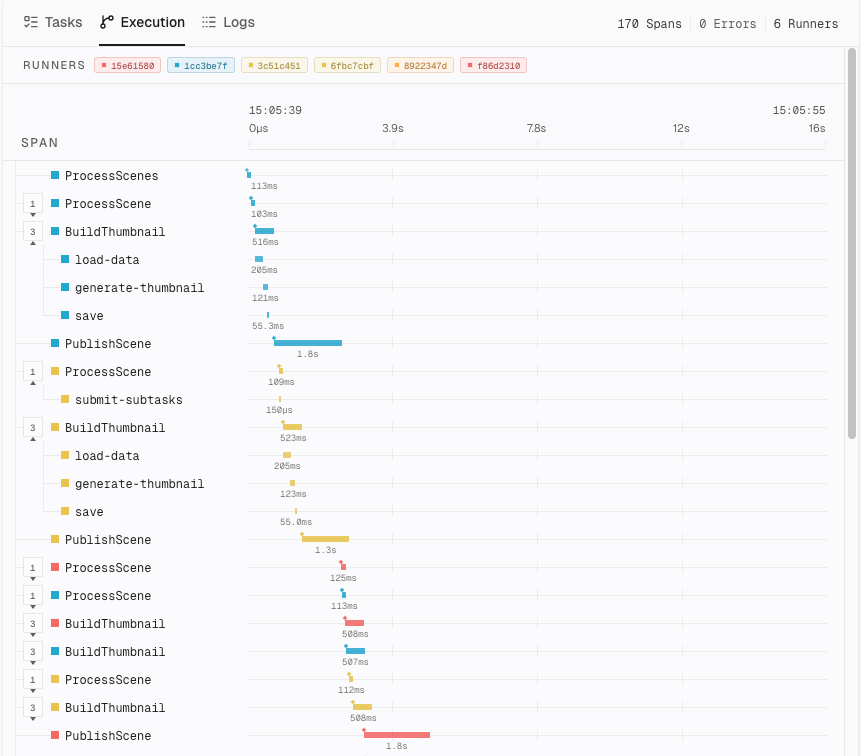
Each task execution creates a trace span, and runners continue the job’s trace across machines. Use context.logger for structured log attributes and context.tracer.span() to measure individual operations within a task:
from tilebox.workflows import ExecutionContext, Taskclass InspectScene(Task): scene_id: str def execute(self, context: ExecutionContext) -> None: with context.tracer.span("inspect-scene") as span: span.set_attribute("scene_id", self.scene_id) context.logger.info("Inspecting scene", scene_id=self.scene_id) # Add the operation you want to measure here.
The custom span is nested under the task span. Logs emitted inside it carry the active trace and span IDs alongside job, task, and runner metadata. In the Console, move from a slow or failed task to its execution timing and logs without matching records manually.
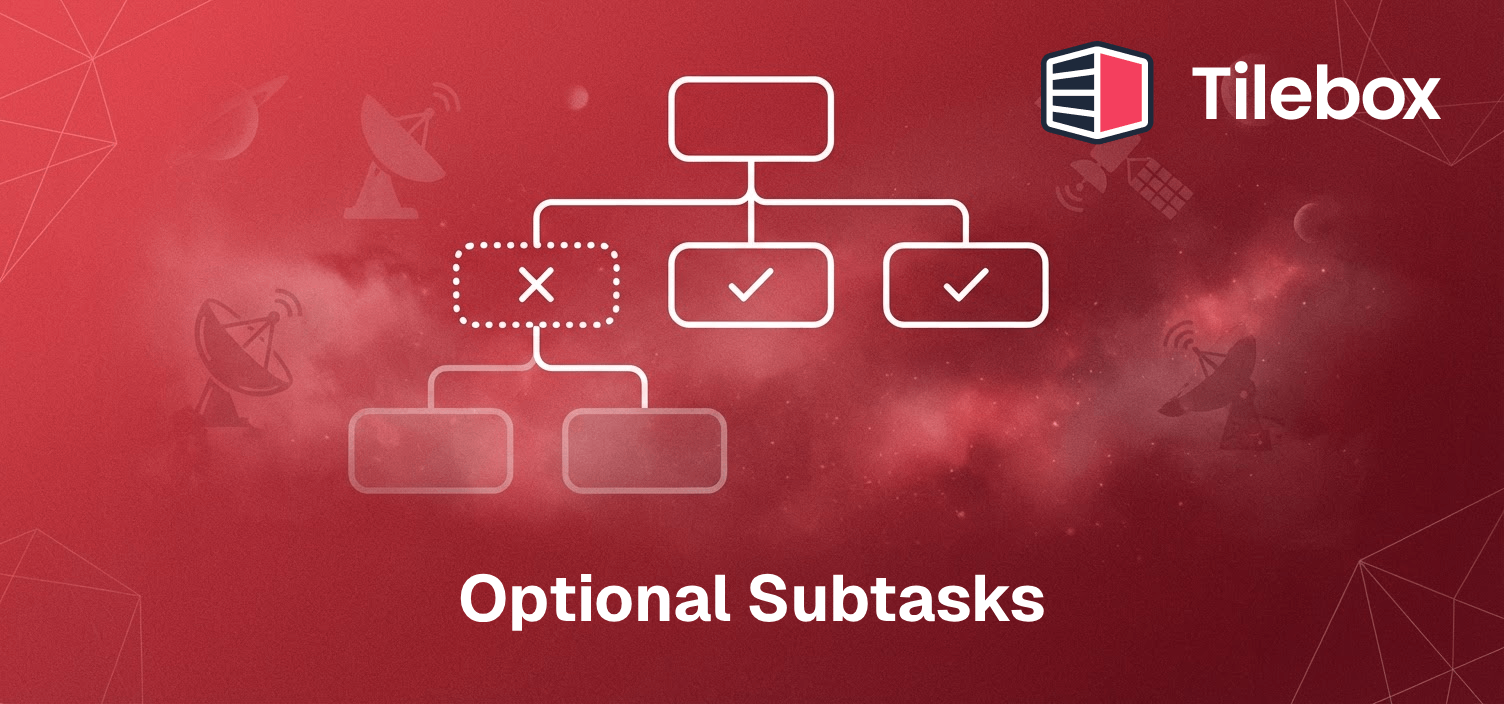
Subtasks can now be marked as optional when submitting them. Use optional=True for work such as preview generation or auxiliary data enrichment whose failure should not cancel the job. Required tasks keep their existing failure behavior.
Inside a task’s execute method, submit an optional step and make a final step depend on it. Here, CreatePreview and Finalize represent your own task classes:
Tilebox retries the preview up to three times before marking it FAILED_OPTIONAL. Finalize still runs after that failure, so it must handle a missing preview rather than assume the optional step produced an output.
Optionality also applies to a task’s nested subtasks. A failure inside that optional subtree skips its remaining queued work (SKIPPED) without canceling the rest of the job. This contains failures within the optional branch while keeping them visible for investigation.
The Tilebox MCP server exposes dataset and workflow tools through the Model Context Protocol. Compatible AI clients can retrieve live Tilebox information, such as a dataset’s schema, instead of relying only on context pasted into a conversation. Documentation search lets agents look up how to use Tilebox before taking action.
Connect an HTTP-capable MCP client to https://mcp.tilebox.com/mcp. For clients that use an mcpServers configuration, add:
Authentication uses OAuth: the client opens a sign-in flow where you select a Tilebox team. No API key or custom authorization header is required. To work with multiple teams, configure separate server entries and authorize each one for its team.
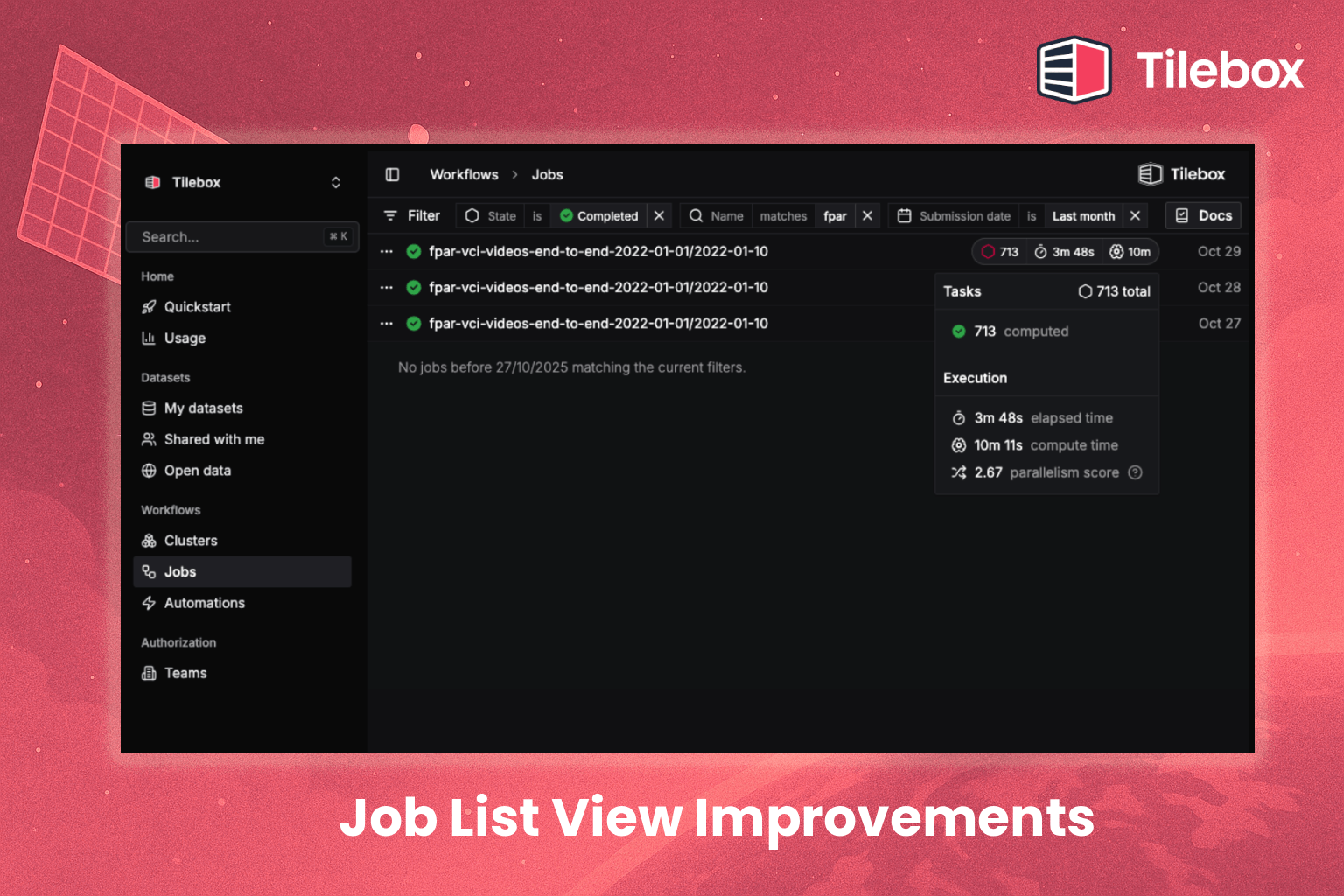
We’ve redesigned the job list in the Console to make a busy workspace easier to follow. Progress indicators and execution statistics give you more information about each run at a glance, and you can keep scrolling through long job histories without switching pages.
New filters help you focus on a particular set of jobs. Combine status, name, time range, and automation—for example, to find failed runs from one scheduled workflow during the past week.
That makes the list useful both for a quick check of current activity and for finding a specific run later. The same filtering options are also available to teams building their own tools with our SDKs.

The dataset explorer now shows where individual observations fall on the map, alongside thumbnails and larger image previews. You can inspect both coverage and content directly in the Console before choosing data for your work.
For satellite imagery, this helps answer two questions together: does this image cover the area I need, and what does it show? You don’t have to judge a result from its metadata alone.
When you’re ready to use a result in your own workflow, the updated Export as Code option also includes an example for accessing its stored data.
As the SatCamp community gathers in Boulder, Colorado for its 3rd edition, the focus turns to some of the most urgent themes in space and technology: Innovation and Disruption, Climate Change Mitigation, and Social Cohesion. These themes frame the conversations that matter most today, highlighting both the challenges we face and the opportunities to shape a more resilient, connected future.
To mark the occasion, we created a Sentinel-2 Mosaic centered on the mountains surrounding Boulder, the backdrop for this unique event. From orbit, the scene is a reminder of how perspective shifts with scale, connecting the global view from space to the very local place where this community comes together to share ideas.
This mosaic builds on an earlier visualization created over Ireland, where we explored the process behind assembling a cloud-free view. Taken together, these mosaics show how satellite imagery, shaped with context, can link the broad perspective of orbit to the specific places where people gather. For SatCamp, that connection offers a reminder of how a global vantage point can frame conversations around innovation, climate, and community, or even help check the hiking routes that wind through the mountains around Boulder.
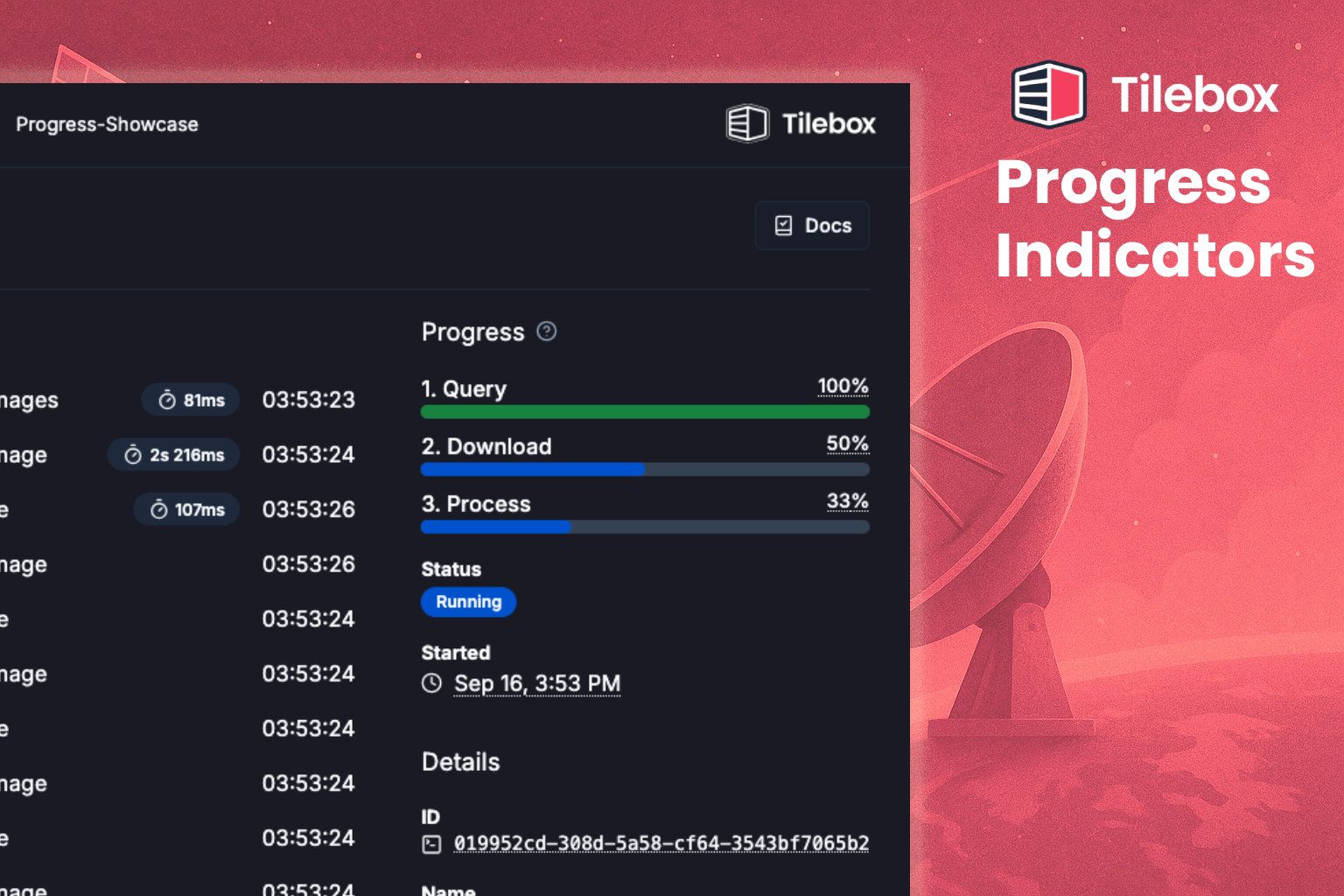
Jobs can now report user-defined progress indicators using a done / total model. Track units that describe your workload, such as scenes processed or files uploaded, rather than using the number of completed tasks as a proxy.
Call add() to increase the total work and done() to increase the completed work. Updates are reported by individual tasks and summed across the job, so a parent can register the total and its subtasks can report completion:
# In the parent task, before submitting one subtask per scene:context.progress("scenes").add(len(scene_ids))# In each subtask, after successfully processing its scene:context.progress("scenes").done(1)
These are increments, not absolute counter values. Use the same indicator name in the parent and subtasks to aggregate their updates. Separate names, such as "scenes" and "uploads", create independent indicators; context.progress() selects the default indicator.
The Tilebox Go client is now available. Teams building in Go can use Tilebox datasets, create workflows, and run their processing code in the language they already use.
The release includes tools for working with datasets and generating Go types that match their structure. That lets developers catch mismatches while building their application rather than discovering them only when it runs.
Go-based runners also let your team execute workflow tasks on its own compute. If Go is already part of your services or processing tools, you can connect that work to Tilebox without first rewriting it in another language.
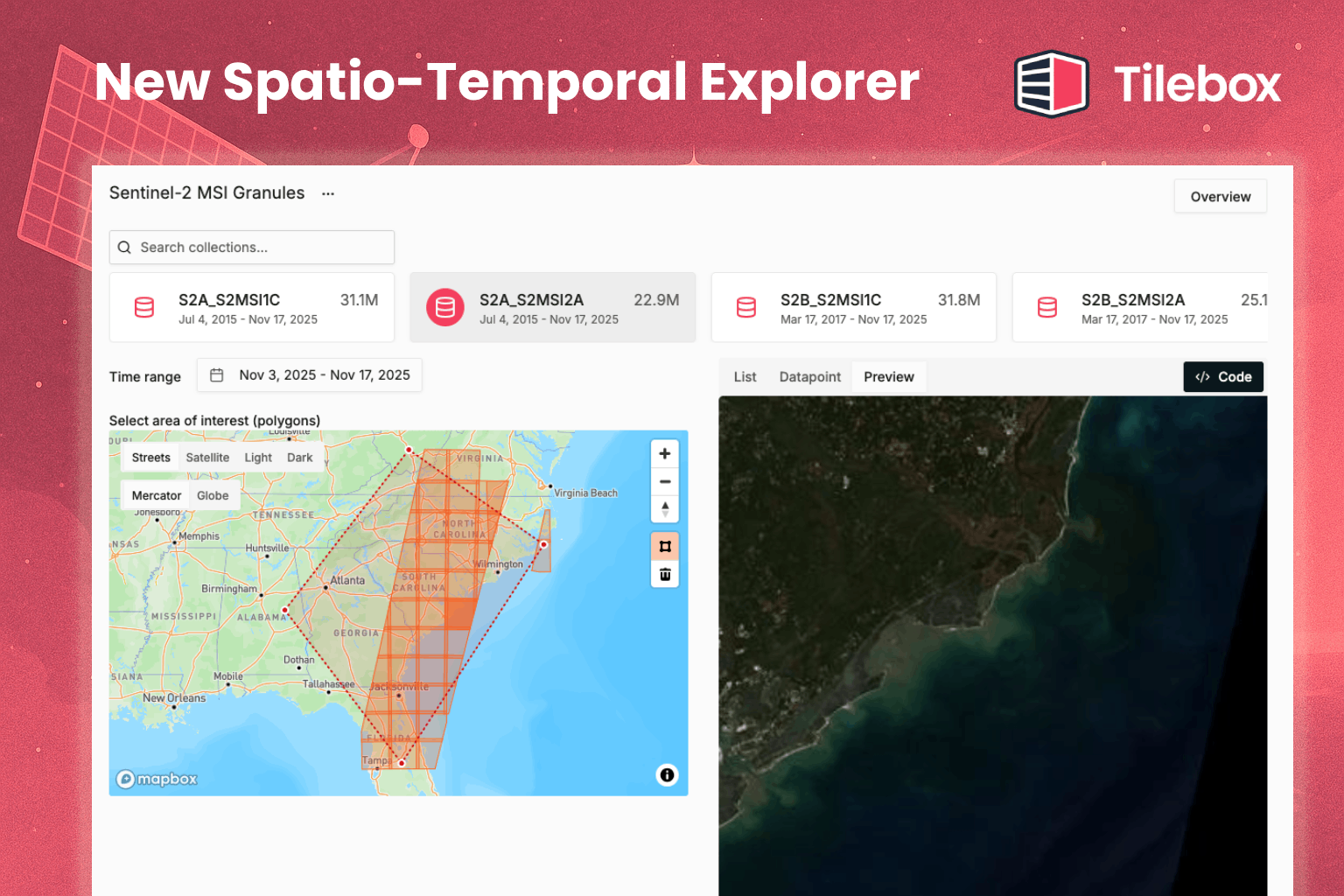
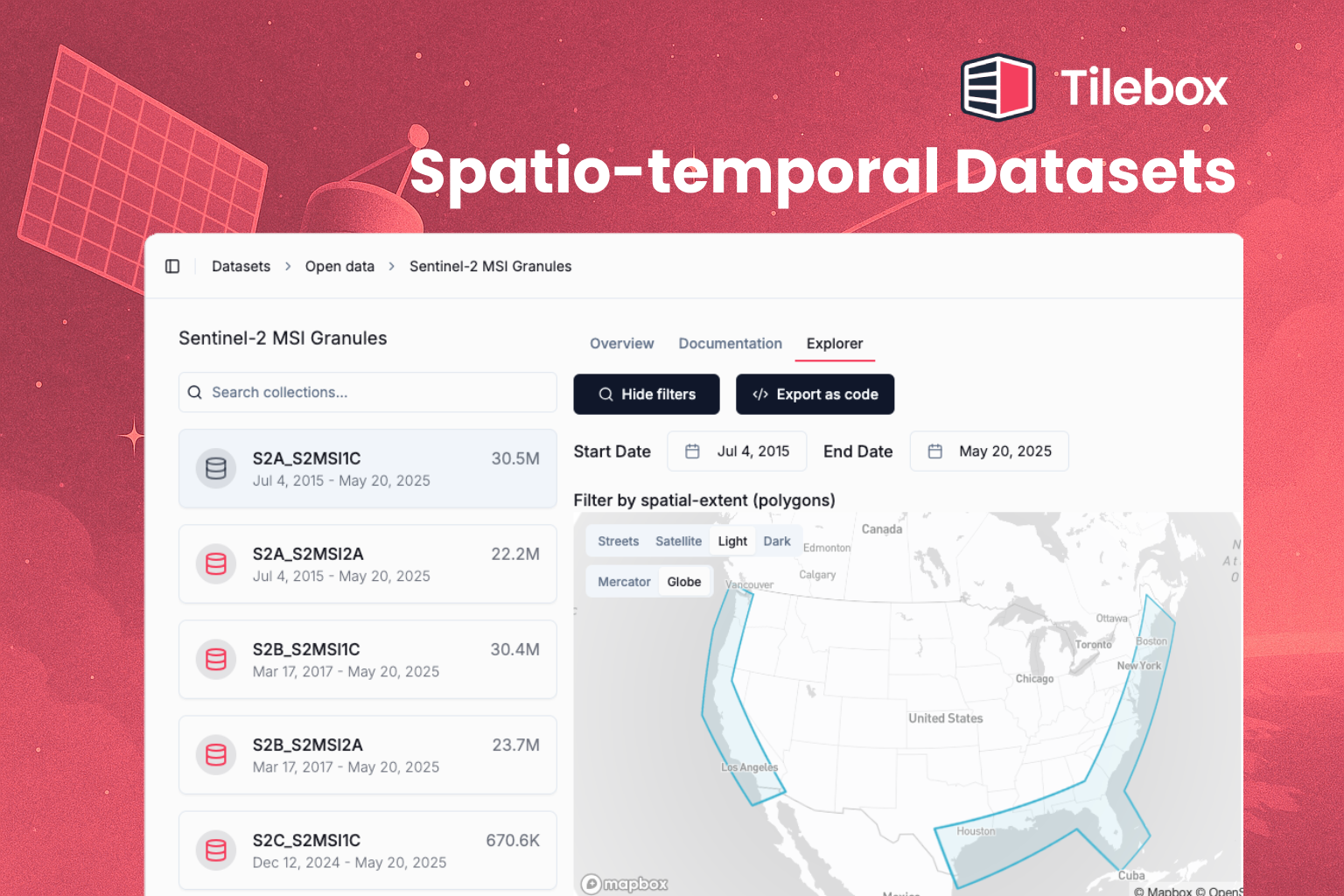
Tilebox now supports datasets organized by both geography and time. You can find observations for a particular area and period, whether you’re searching open satellite data or a catalog your team has created.
For example, you can look for Sentinel-2 images along the US coastline from the past year. The same approach works for location-based records such as weather station readings, field measurements, or the results of your own analysis.
This gives teams a shared way to organize data that comes from different sources but describes the same places. The capability is available across all supported languages, and open datasets now support searches by place and time too.
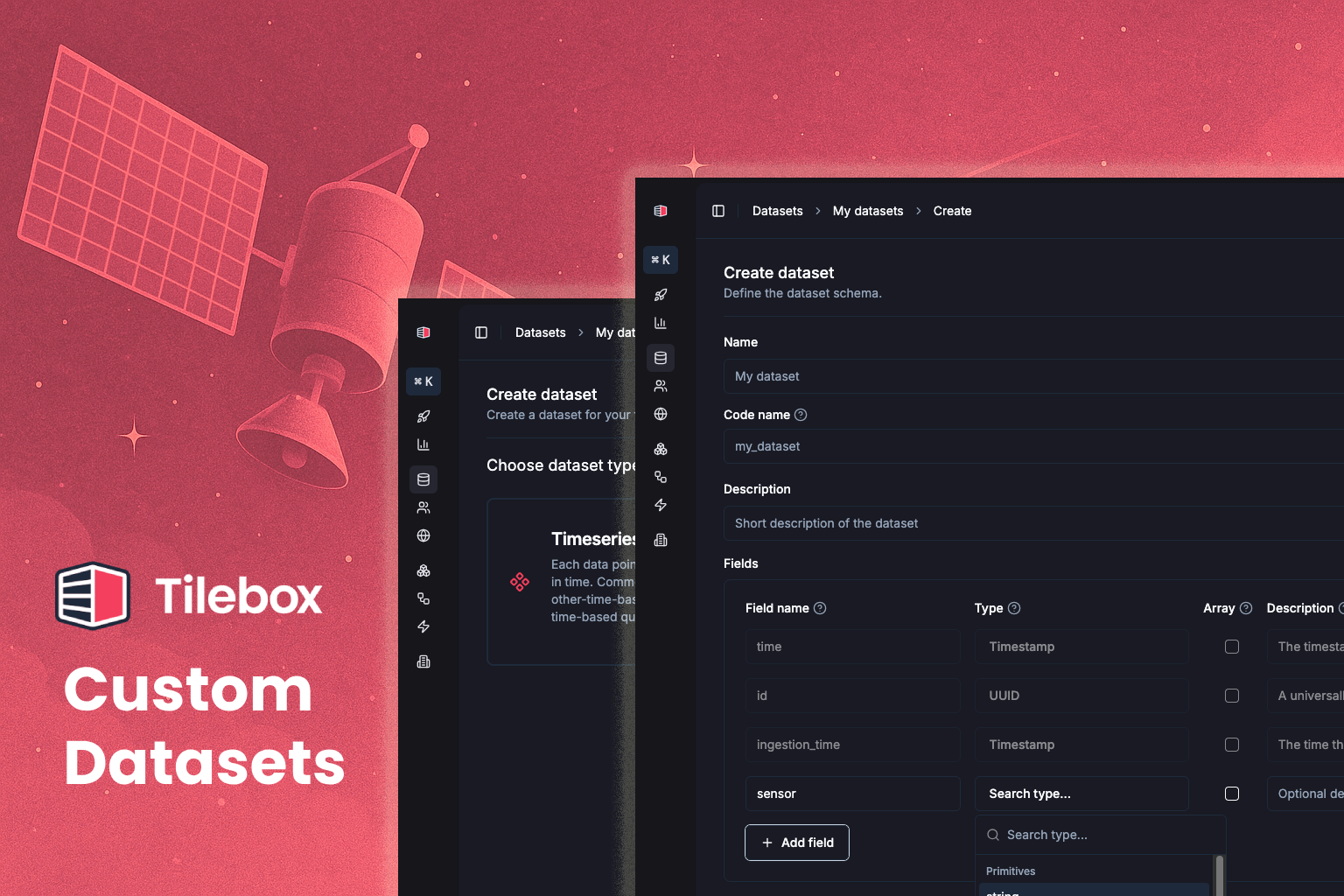
You can now create custom datasets in Tilebox. Define the information each record should contain, then add and query your own data using the Python or Go tools.
Custom datasets can hold the records your team needs alongside its processing work: sensor measurements, details about raw satellite data, configuration records, or an internal catalog. You choose the structure to fit the information rather than adapting it to a fixed set of fields.
That gives your team a consistent way to organize and retrieve its own records through Tilebox, with the same data structure available to both Python and Go applications.