
Turn a bucket of geospatial products into a searchable catalog. This demo defines a metadata schema, backfills 5,000 products in parallel, and queries them by area. A storage event automation then adds new products using the same ingestion code.
Explore the ingestion demo code.
Transcript
Define the catalog schema
0:00 Hey everyone, today I want to show you how to take a bucket full of files and catalog it and make it searchable. So here’s our bucket. We’ve got 5,000 products in here, and each one has two cloud-optimized GeoTIFFs, a preview, and a metadata file. The metadata tells us what the product is, where it’s located, when it was captured, and some extra metadata. That’s what we’ll put in the catalog along with the links to the files.
0:33 First we need to tell Tilebox what fields we want in the catalog. Here that’s the product ID. That’s going to be searchable or queryable, and it’s going to be what we see in the console. And then we have the orbit direction, searchable as well, polarizations, again searchable. This is an array, so it’s repeated. And then a processing version as well as our assets. Time and footprint are already built in. Here we’re adding non-standard or custom things.
1:02 This is all defined in a JSON file. You can give an agent a few sample metadata files to generate it or create the schema by hand in the console. I’ll use this command to create it.
1:17 There it is. In the console we can see the fields that we just defined, but there’s no data in here yet. So let’s bring that data in.
Backfill and query the products
1:26 Here’s the backfill code. It looks for the metadata files in the bucket and then splits them into batches of 500 and starts an ingestion task for each batch. So let’s run this job.
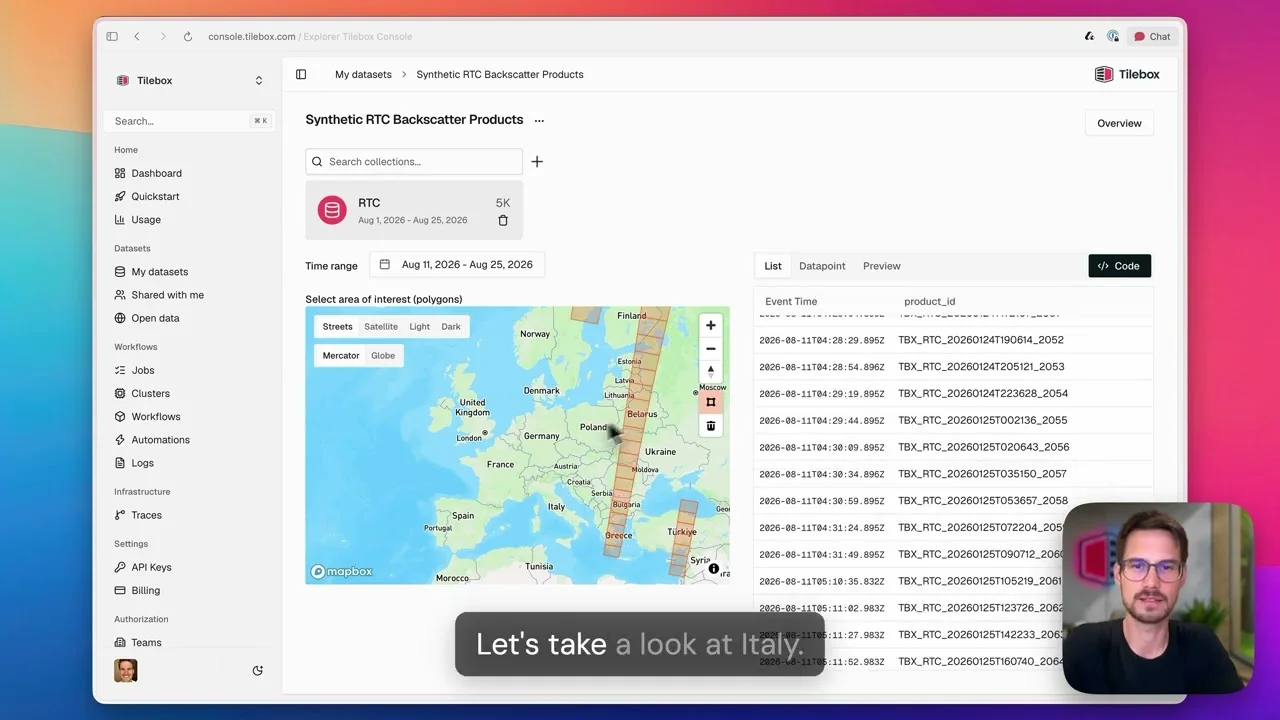
1:44 You can see the ten batches running in parallel here. Each one reads the metadata and adds those products to the catalog. And now we’ve got all 5,000 products in here. Let’s take a look at Italy. We draw a polygon over the area, and we see immediately all the products that cover it.
Ingest new arrivals automatically
2:20 Now I want new products to show up as they arrive, so we register a storage event automation. We tell the automation which files to watch for and what workflow to start when a new file arrives. So we’re watching for new metadata files that arrive in our product folder. Now let me run that script to generate this automation. I’m registering this now, and then we’ll add a product and watch as it gets ingested.
2:54 So let’s try this. If I want to look at anything beyond the data we—we have in our catalog, there’s nothing here yet. So I’ll run a little job to create a new data product in the bucket. You can see how it wrote the two TIFFs and the metadata file. We write the metadata last because that’s what triggers the ingestion. By then all the other files are in place.
3:22 And if we take a look here, this has an automation sign. So this is the job that got automatically triggered. Here’s the job that the automation started. It takes—it takes the path to that new metadata file and passes it to the same ingestion task that we used for the backfill. This time there’s only one product to add.
3:45 So let’s go back to the catalog and reload the same, reload the time range, and we see that on the 28th, after the 25th that we had previously as the end date, we have this one new product that we just ingested. There it is. We added the files to the bucket, and the automation picked them up.
4:09 So we can now search these products by time and area and all the other metadata fields that we made queryable, and new products get added automatically. If you want to try this with your own data, the code is linked below.